How to use Kaya
Your shop's settings
Each setting changes something a customer sees. This page says what.
Opens WhatsApp so you can pick who to send it to.
- Step 1
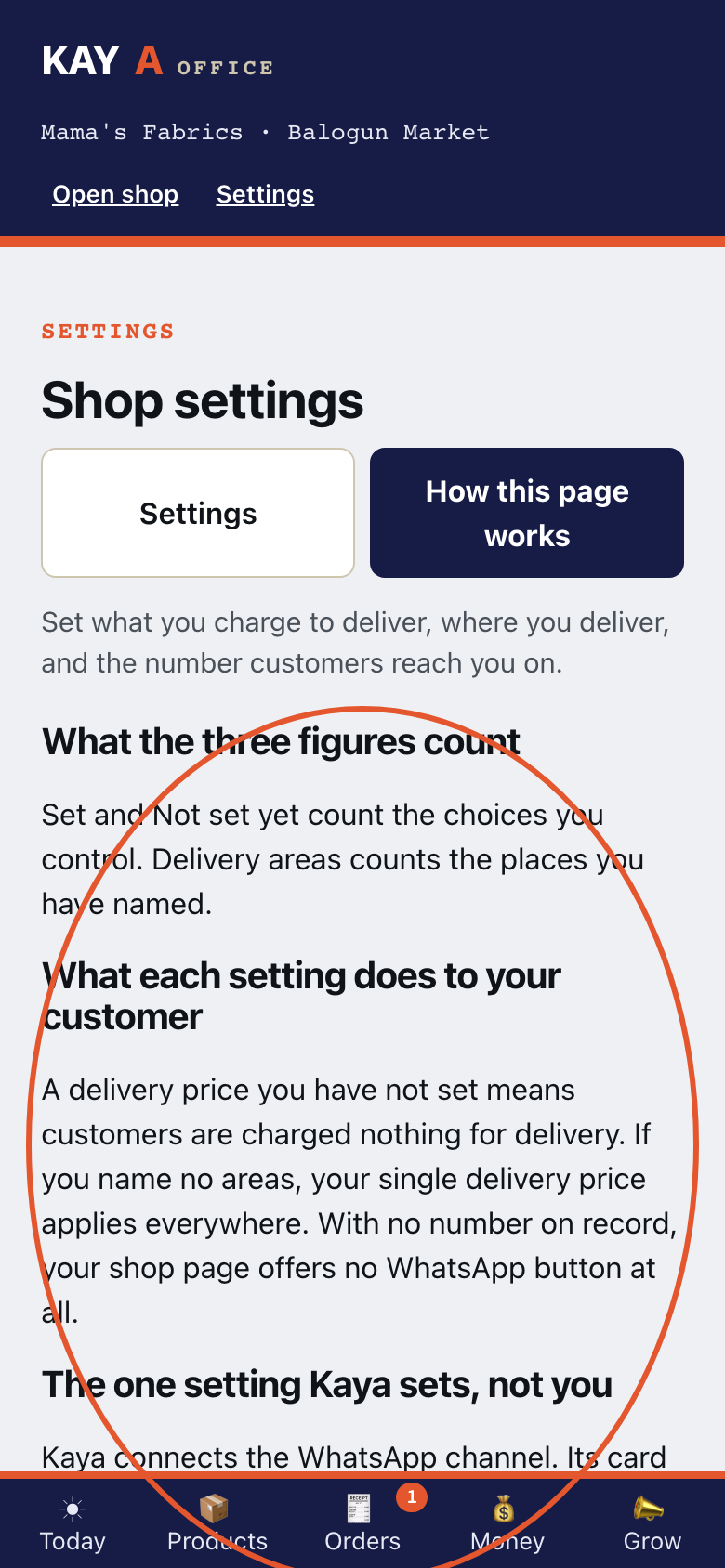
Read What each setting does to your customer before opening a fold.
- Step 2
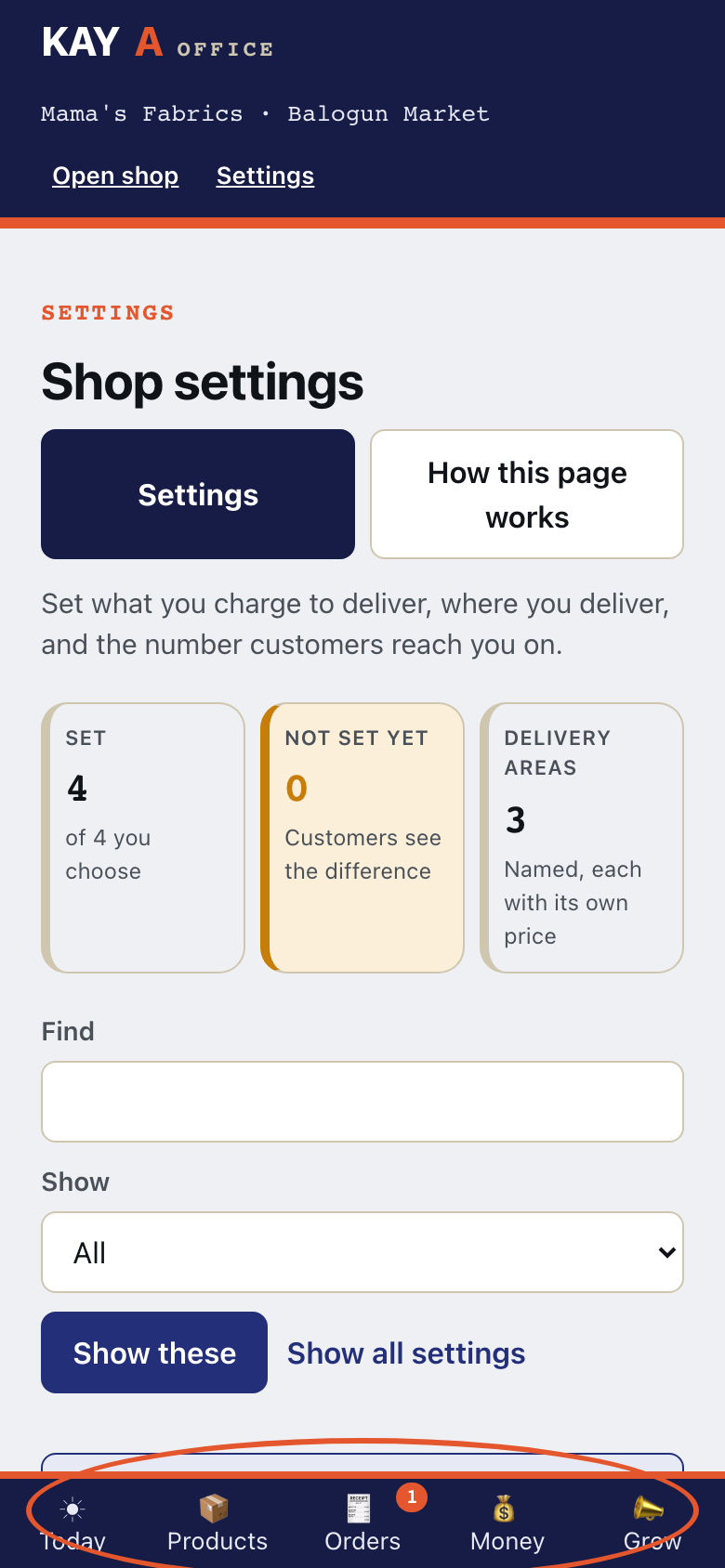
Open Shop details. Check the shop name, public link and the number customers reach.
- Step 3
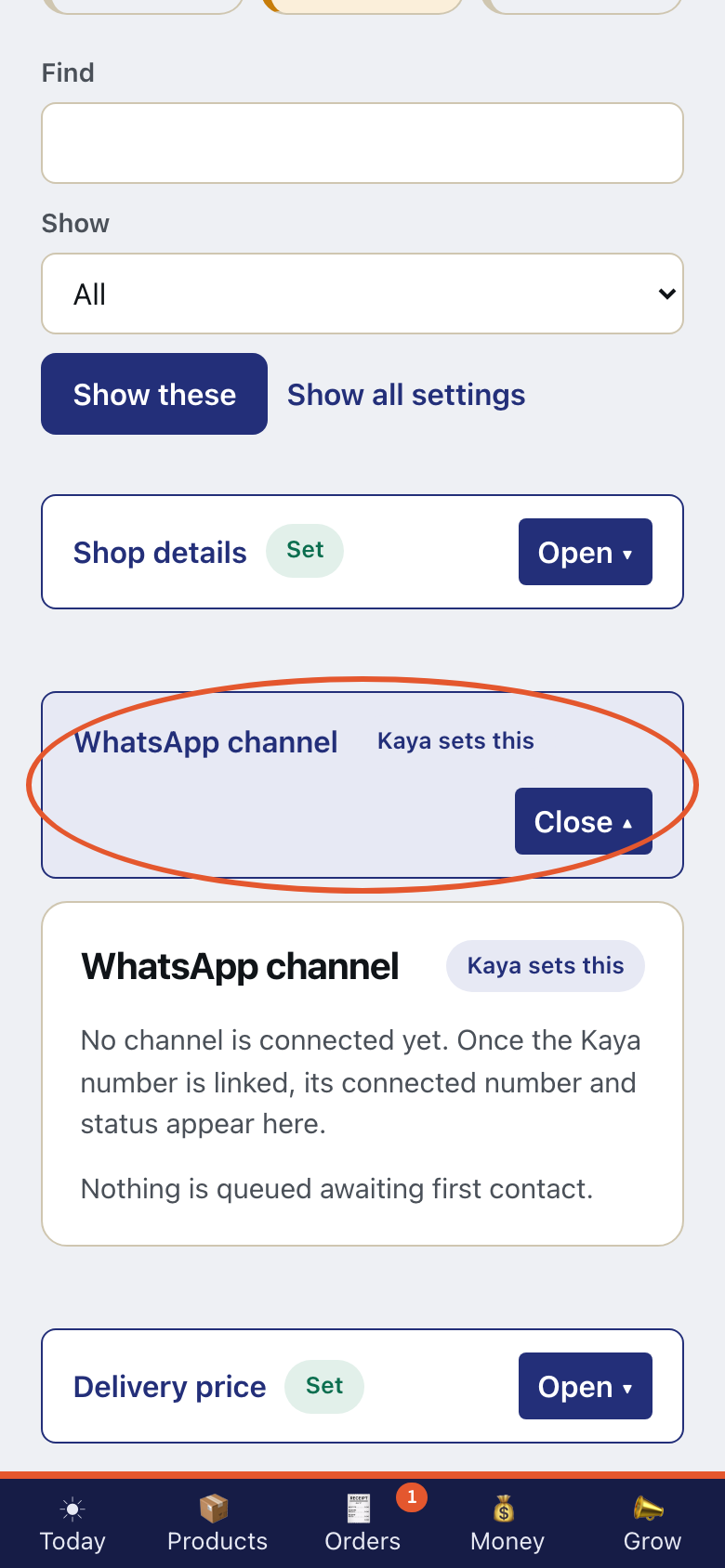
Open WhatsApp channel. Kaya connects it. There is nothing for you to set.
- Step 4
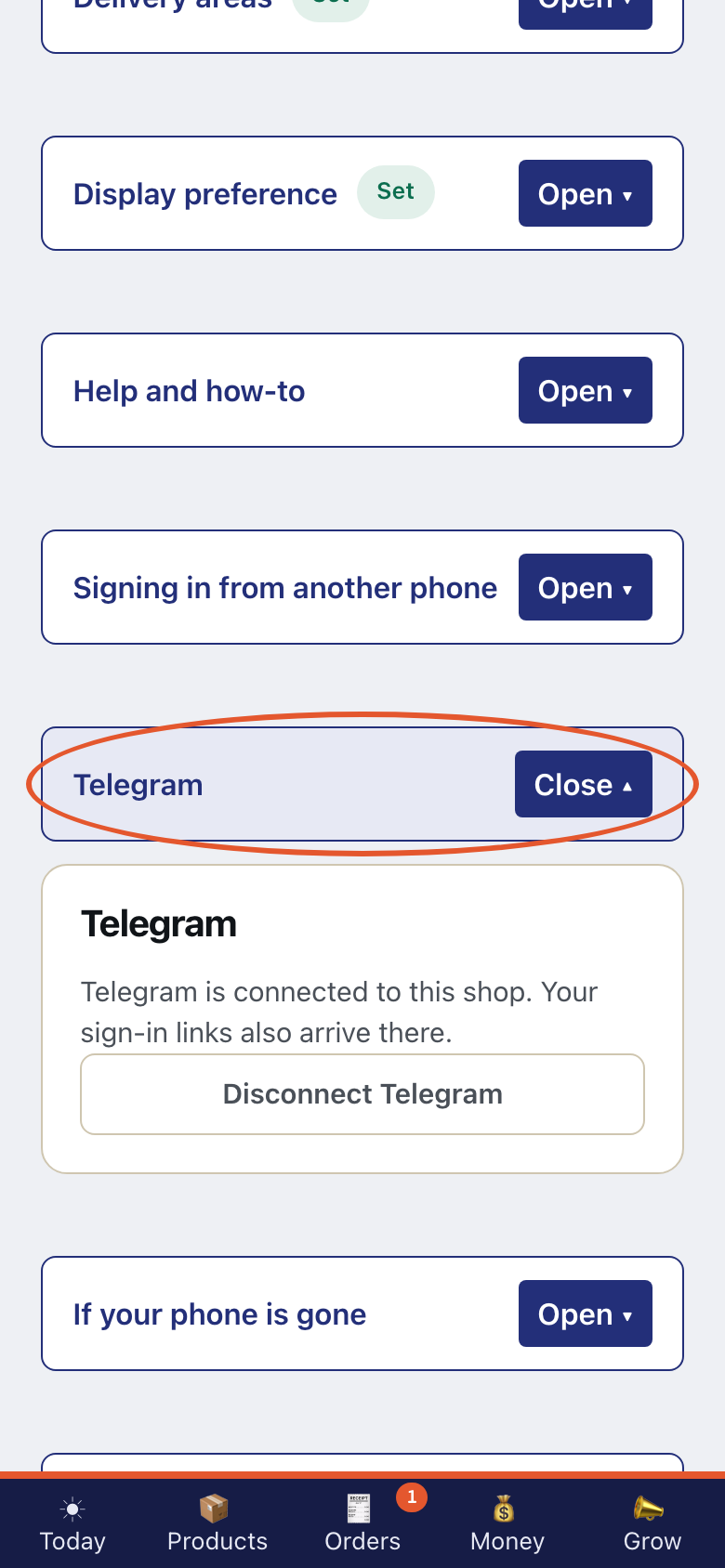
Open Telegram. Connect from here or from the bot.
- Step 5
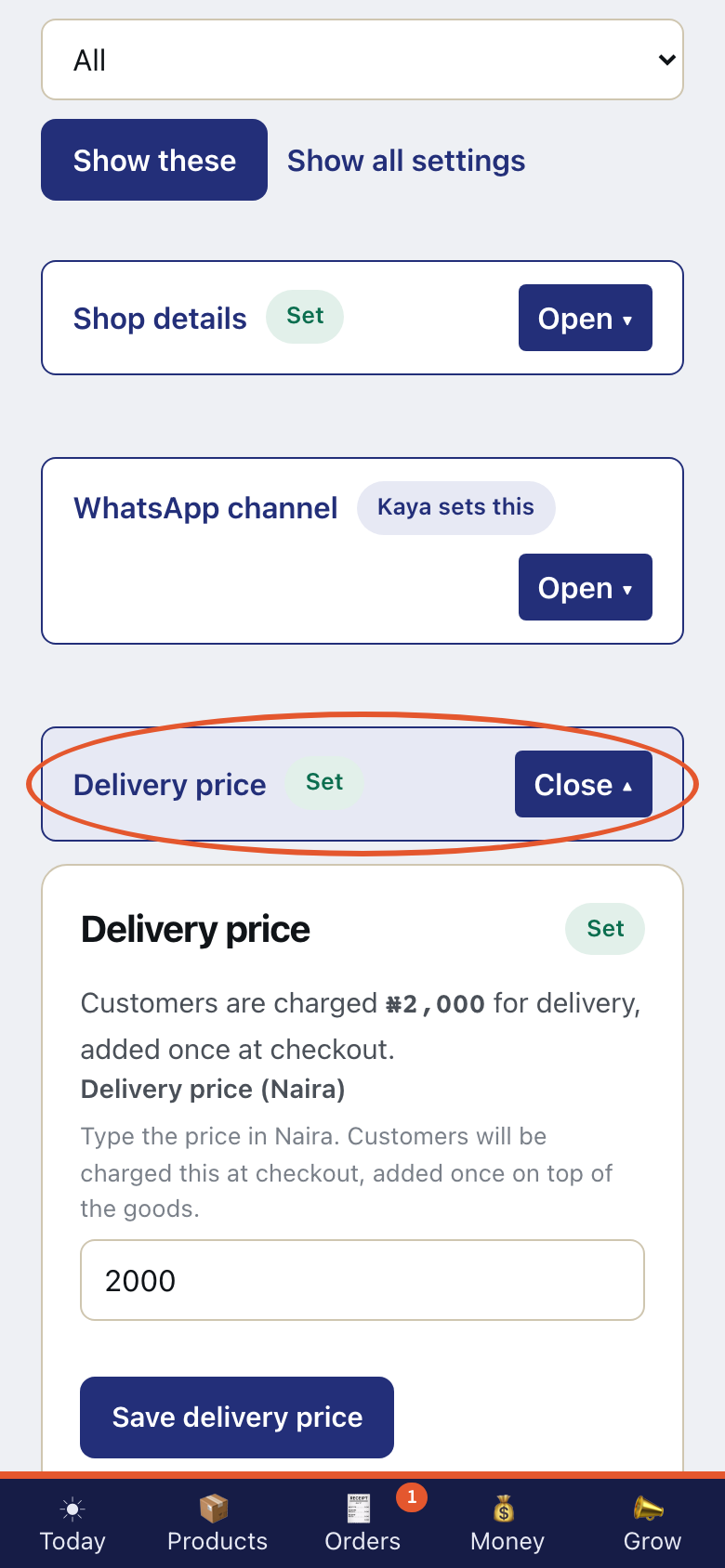
Open Delivery price. It changes what a customer sees at checkout.
- Step 6
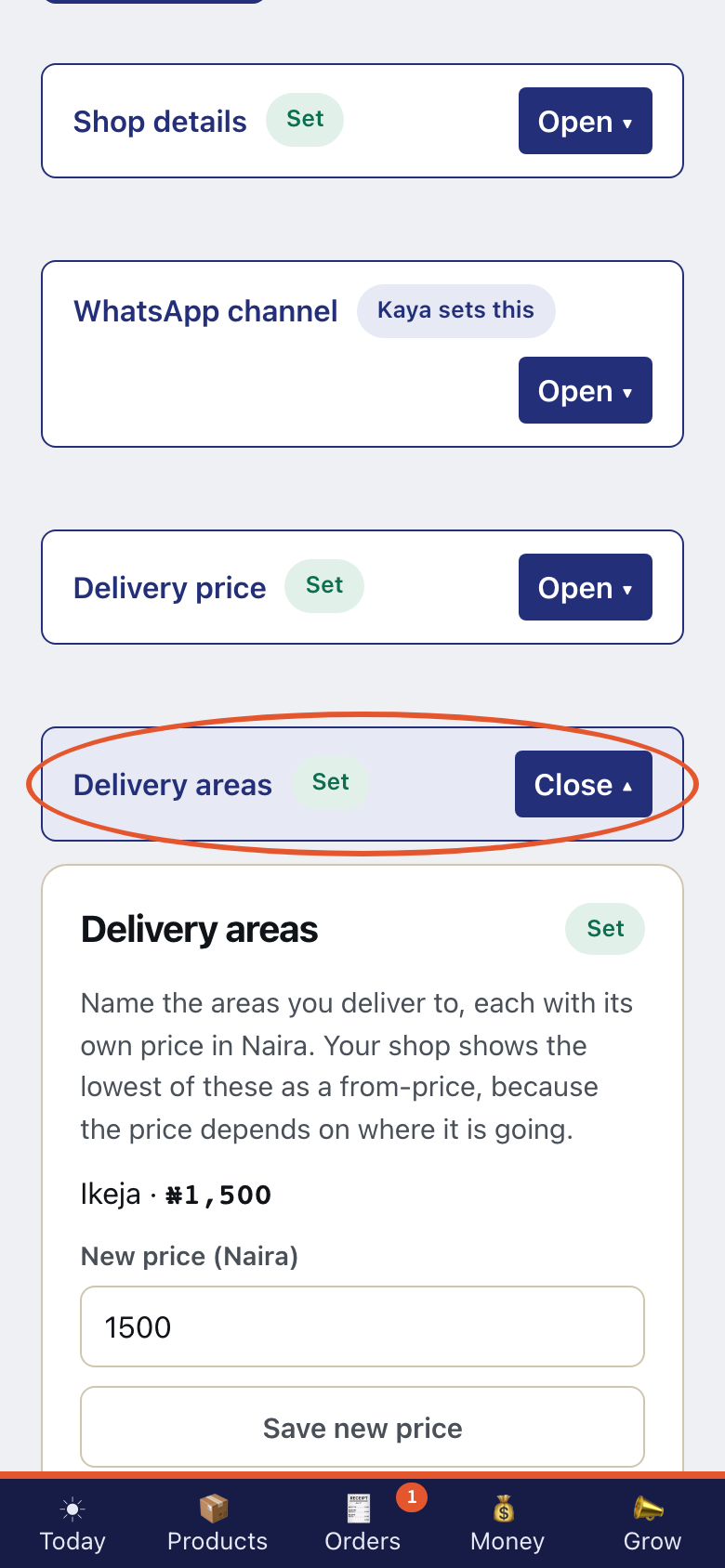
Open Delivery areas. Each area can have its own charge. Naming a delivery area with its own charge is part of the Trader plan. Kaya is not taking payment for plans yet.
- Step 7
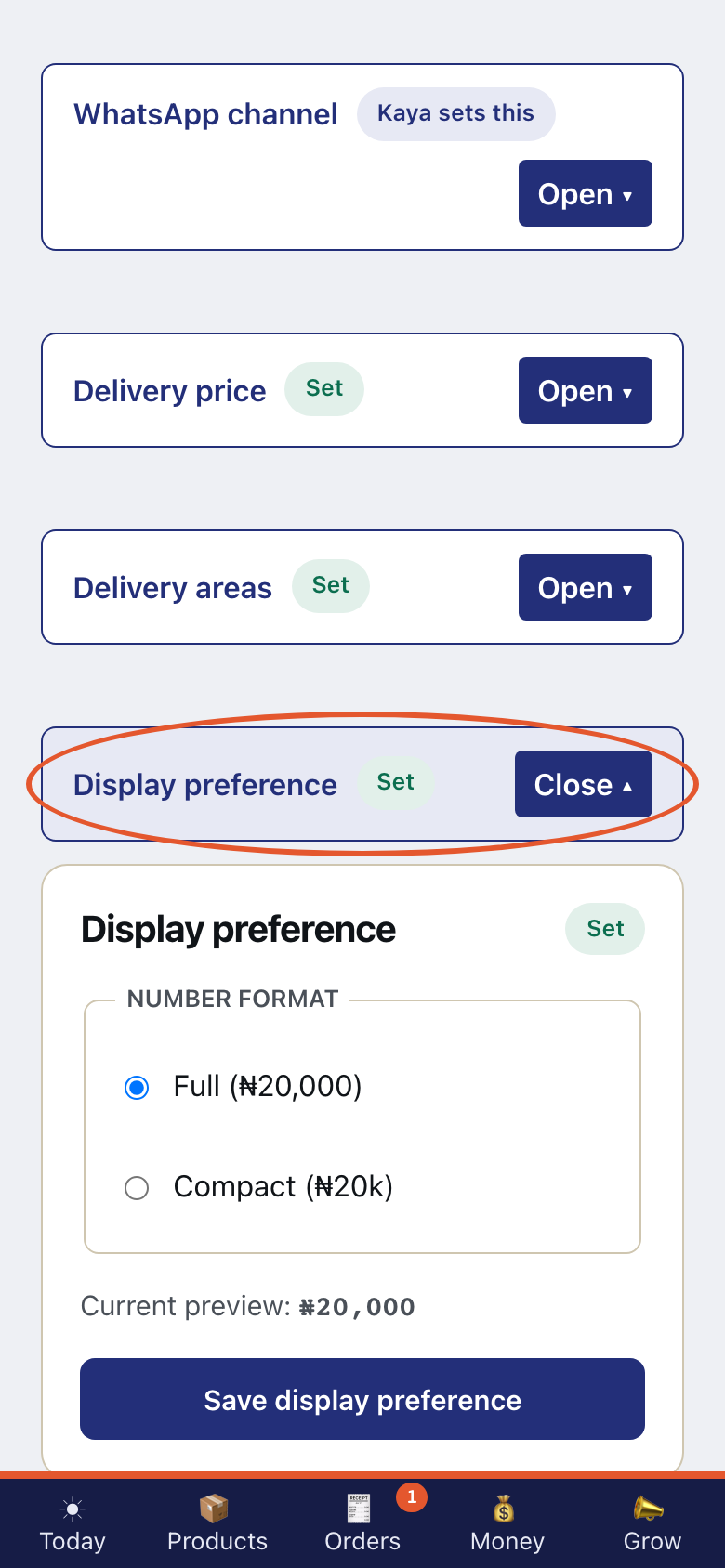
Open Display preference. It changes how numbers are written.
- Step 8
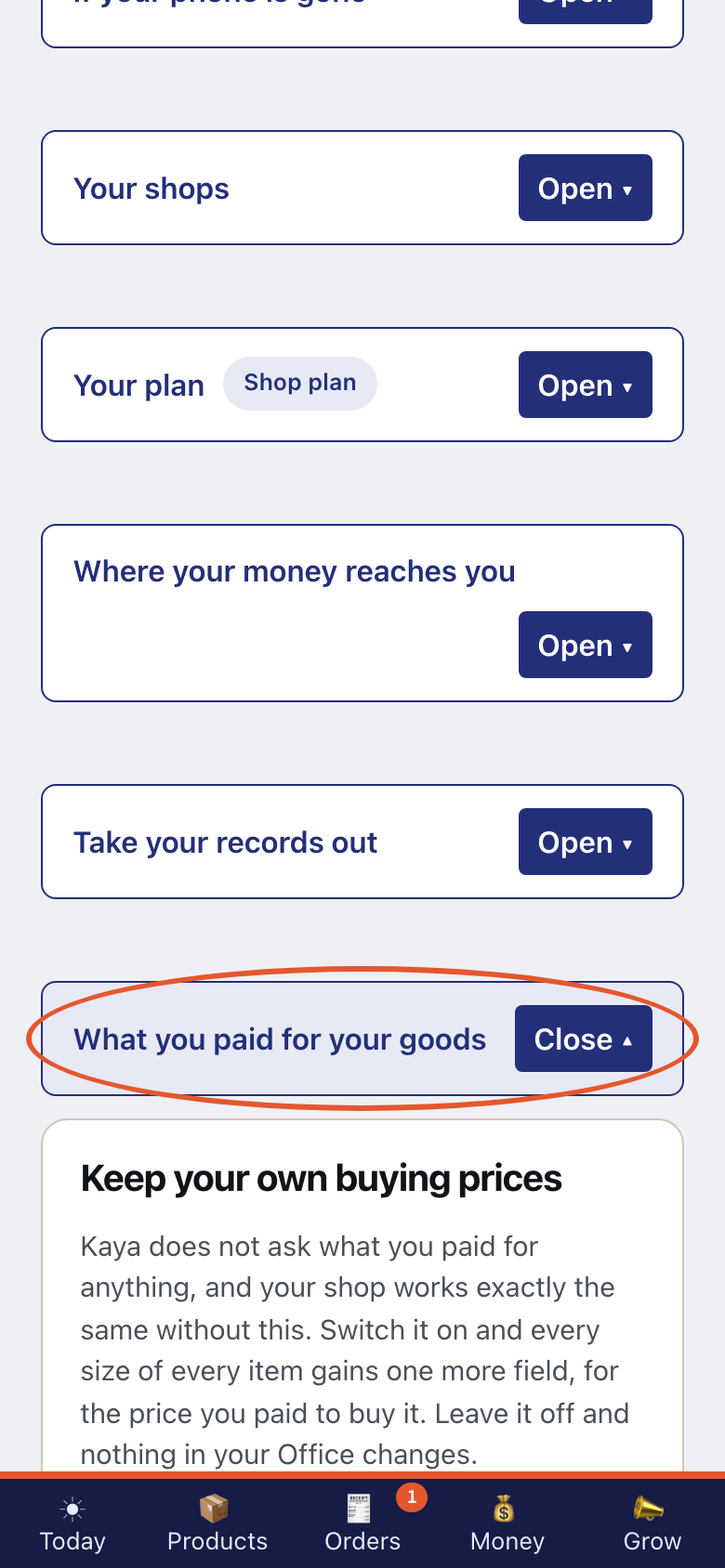
Open What you paid for your goods. It supports private stock-value figures.
- Step 9
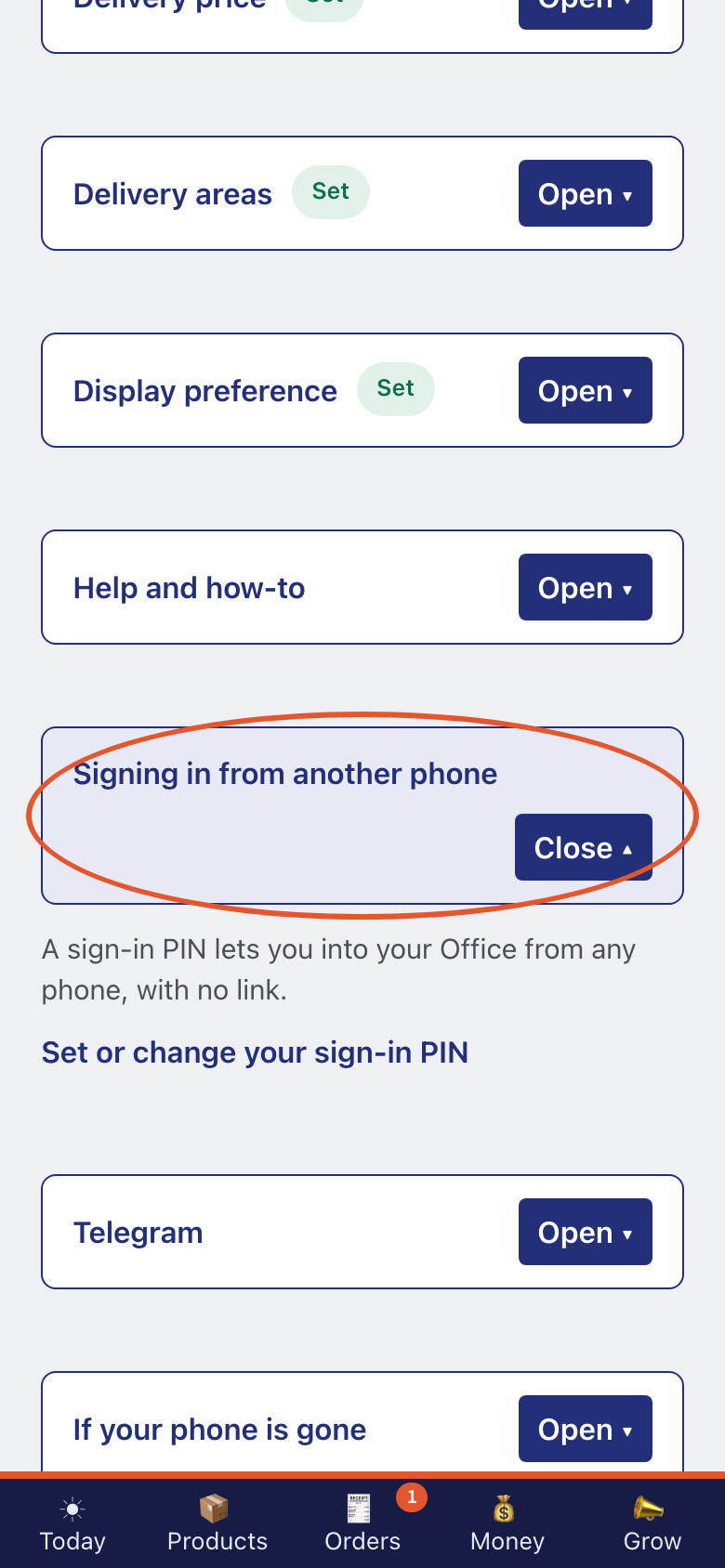
Open Signing in from another phone. A sign-in PIN opens your Office.
- Step 10
Read the Money PIN rule. A PIN protects money leaving, not money logged.
- Step 11
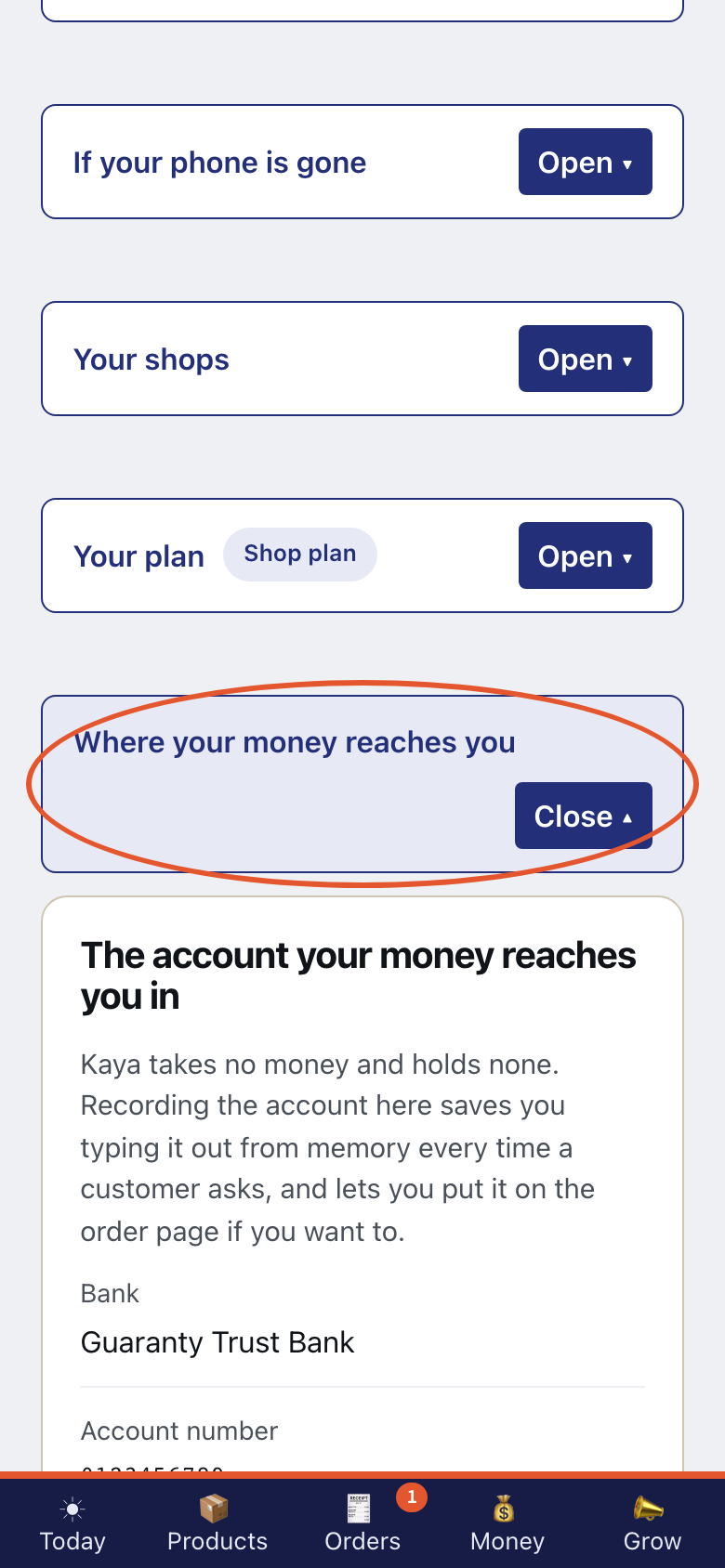
Open Where your money reaches you. Published bank details appear to customers on the order page.
- Step 12
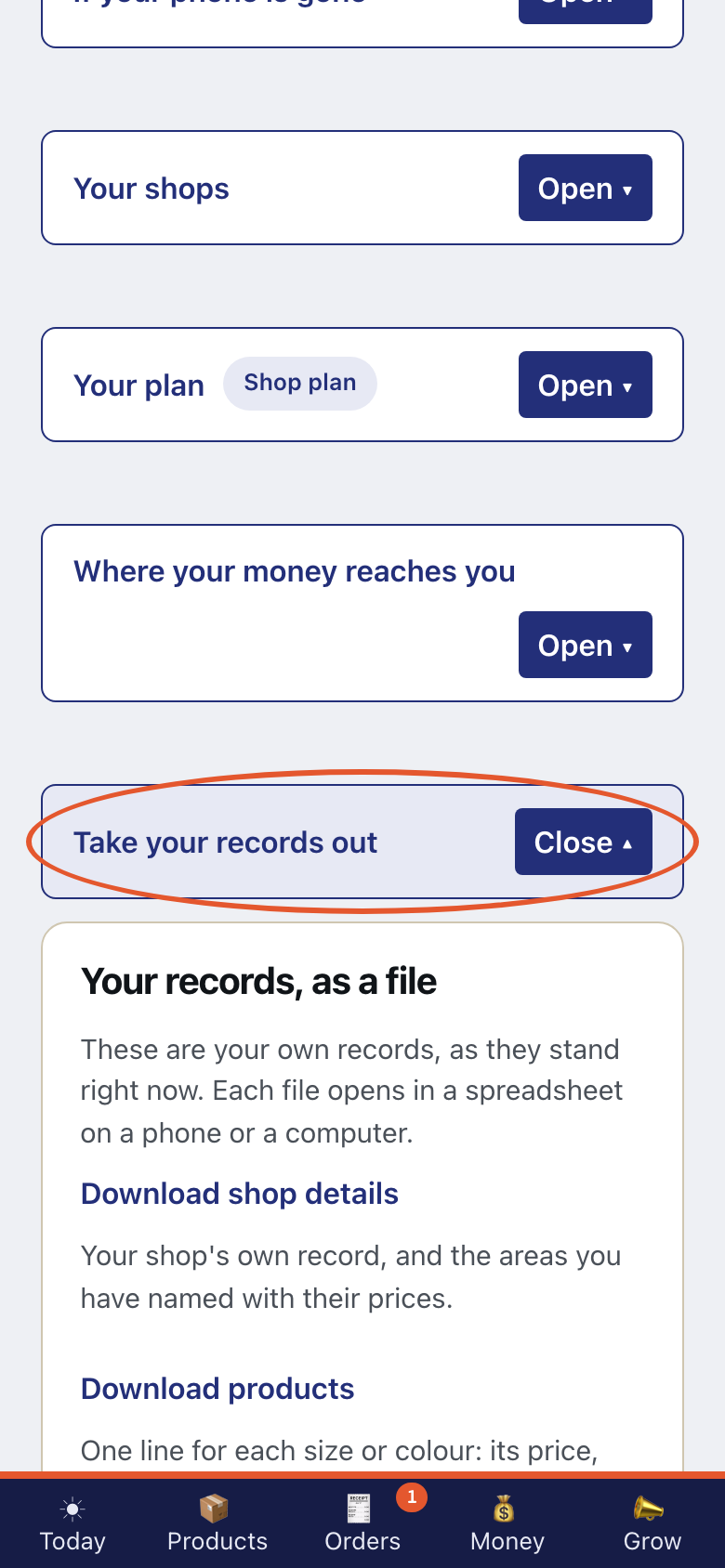
Open Take your records out. Download your own records.
- Step 13
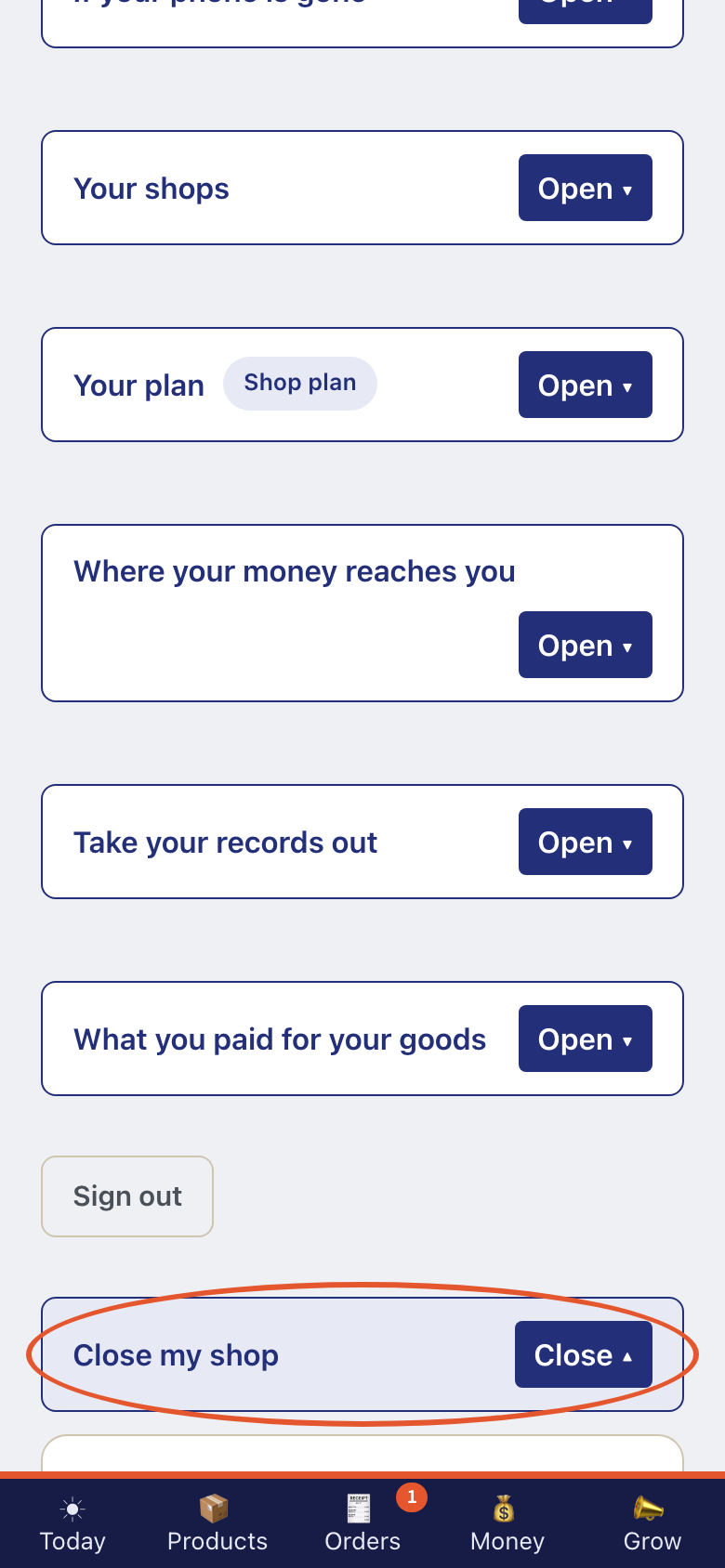
Open Close my shop. Closing hides the shop and keeps its records. Do not submit it.
- Step 14
Use Sign out when this is not your phone.