How to use Kaya
Get back into your Office, four ways
You are never locked out. A link on WhatsApp or Telegram, your number and PIN from any phone, or a link to the person you trust.
Opens WhatsApp so you can pick who to send it to.
- Step 1
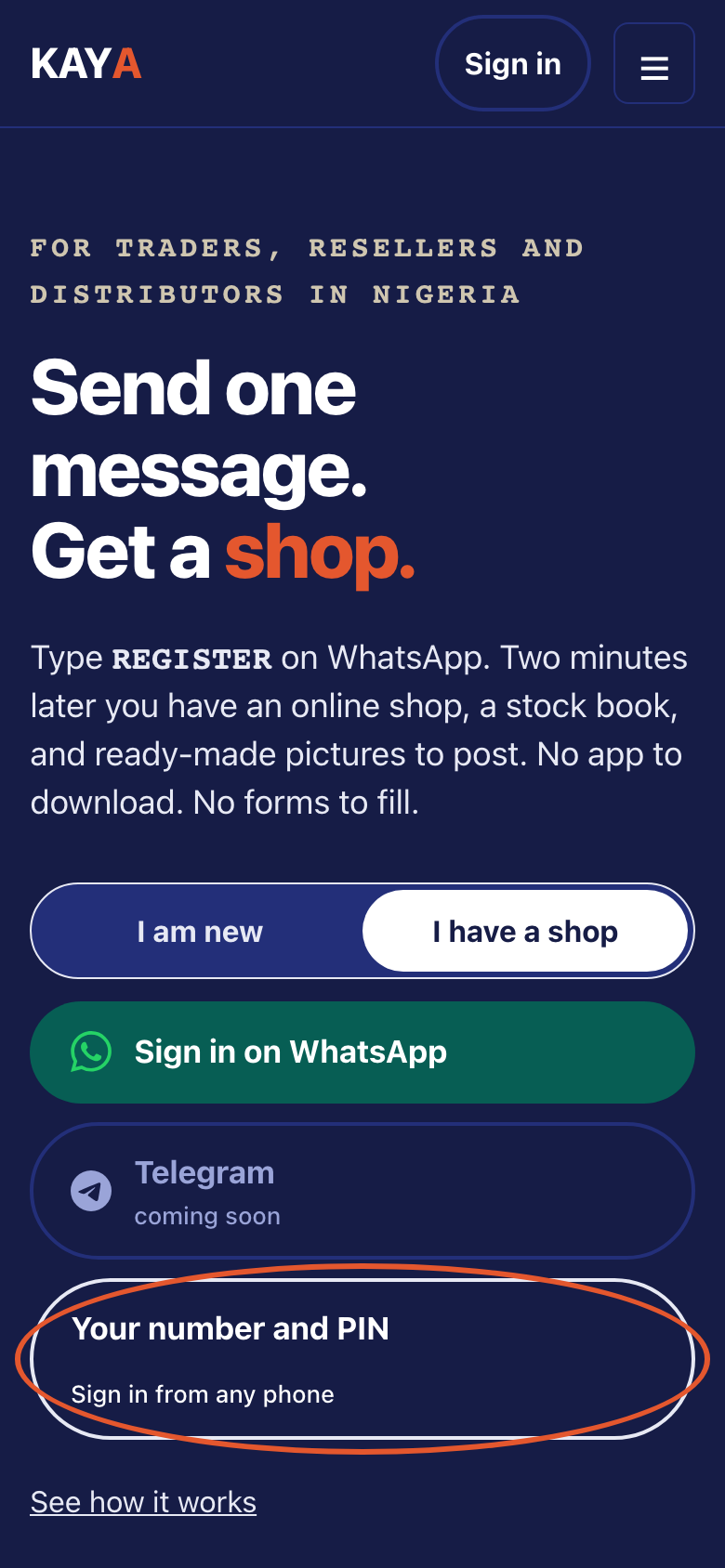
On the landing, tap I have a shop. Then tap Your number and PIN.
- Step 2
Send LOGIN as its own message. A link works once. Tap it yourself.
This is what Kaya writes
youLOGINKayaHere is your Kaya sign-in link (valid 10 minutes): https://kaya.sabidesk.cloud/app/auth/your-link Tap it to open your Office. If you didn't ask to sign in, you can ignore this. Tip: set a sign-in PIN in your Office to sign in from any phone without a link. - Step 3
Tap the link Kaya sent. It opens your Office.
- Step 4
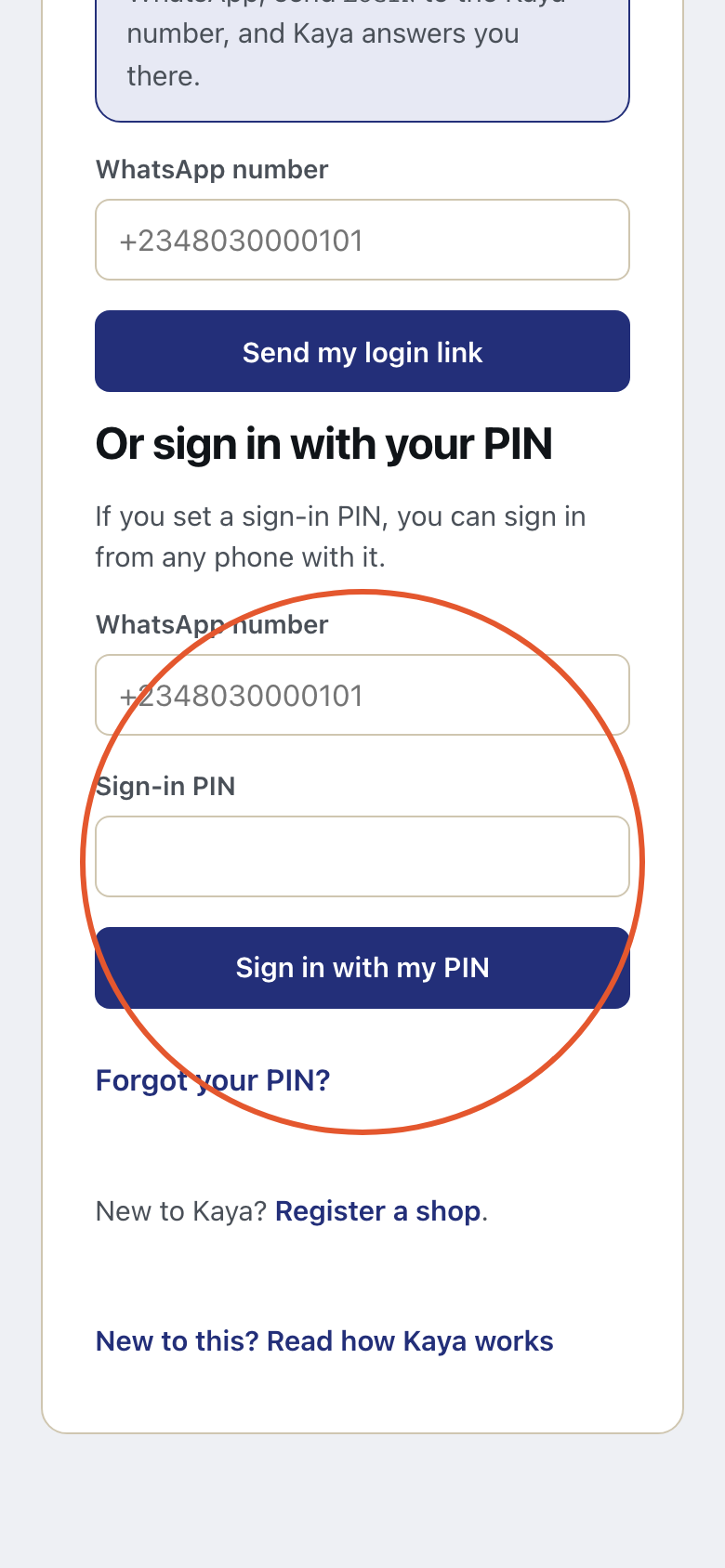
Or type your number and PIN on the sign-in page.
- Step 5
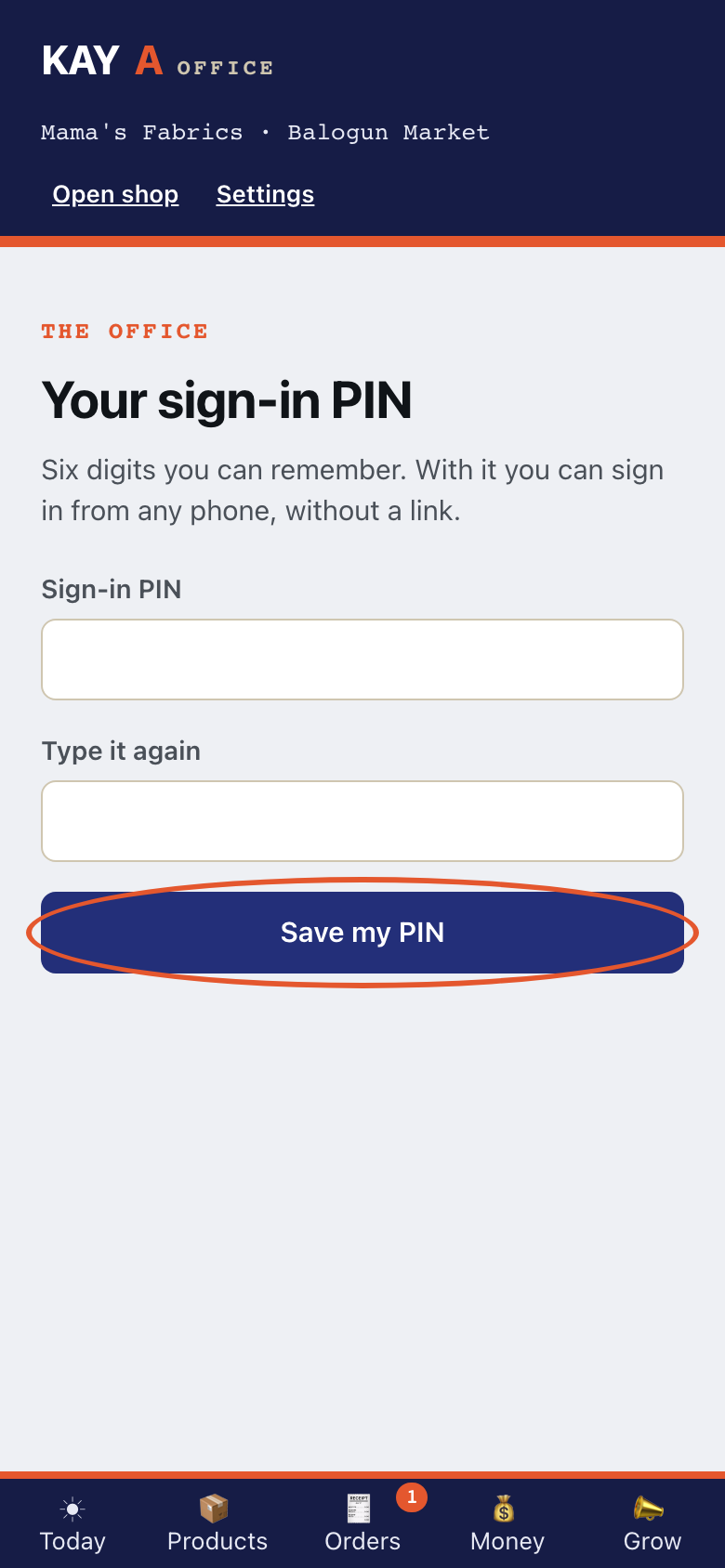
Choose a sign-in PIN the first time. Tap Save my PIN. Your sign-in PIN is not your Money PIN.
- Step 6
Forgot your PIN? Send RESET as its own message.
This is what Kaya writes
youRESETKayaHere is your Kaya reset link (valid 10 minutes): https://kaya.sabidesk.cloud/app/auth/your-link Tap it to choose a new sign-in PIN. If you didn't ask for this, you can ignore it. - Step 7
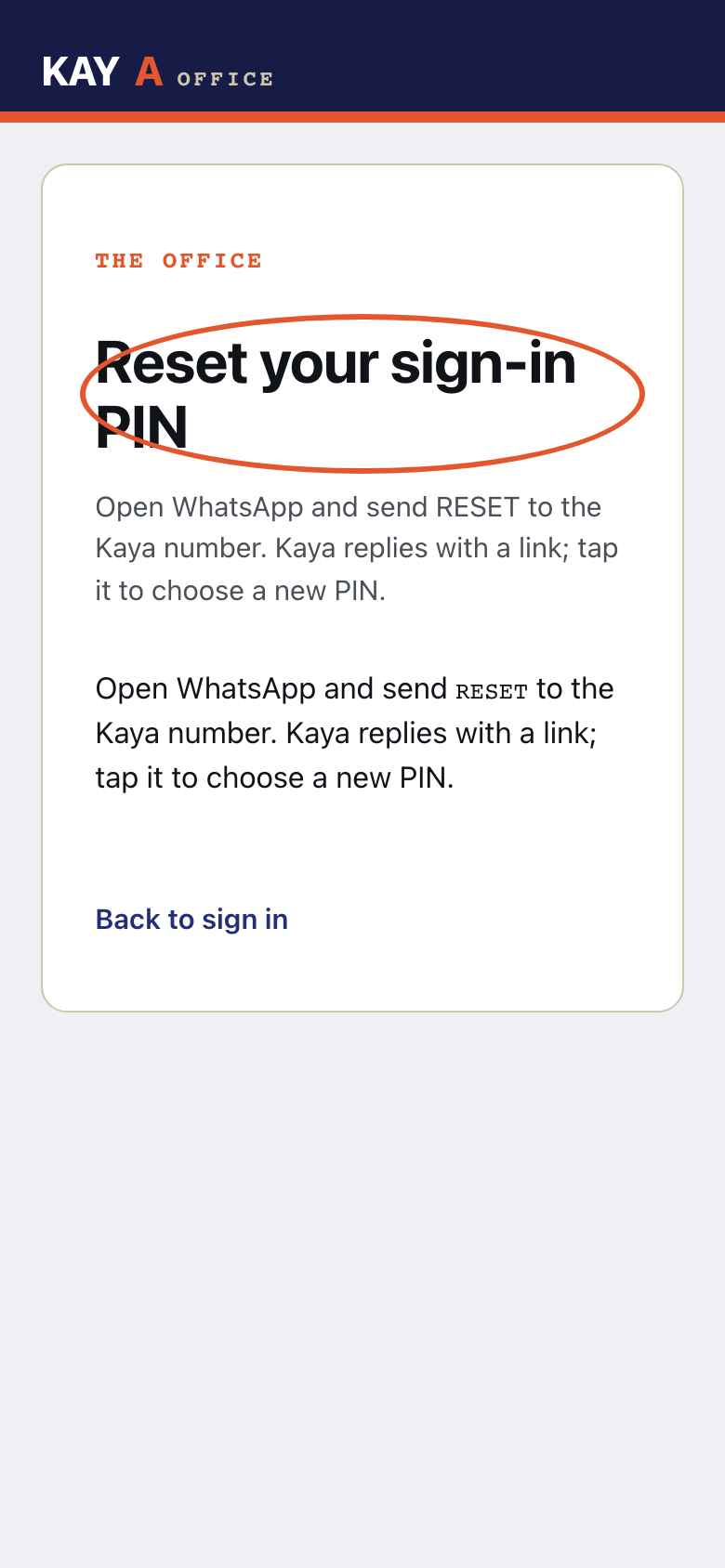
The reset page says the same: send RESET, then tap the link Kaya sends.
- Step 8
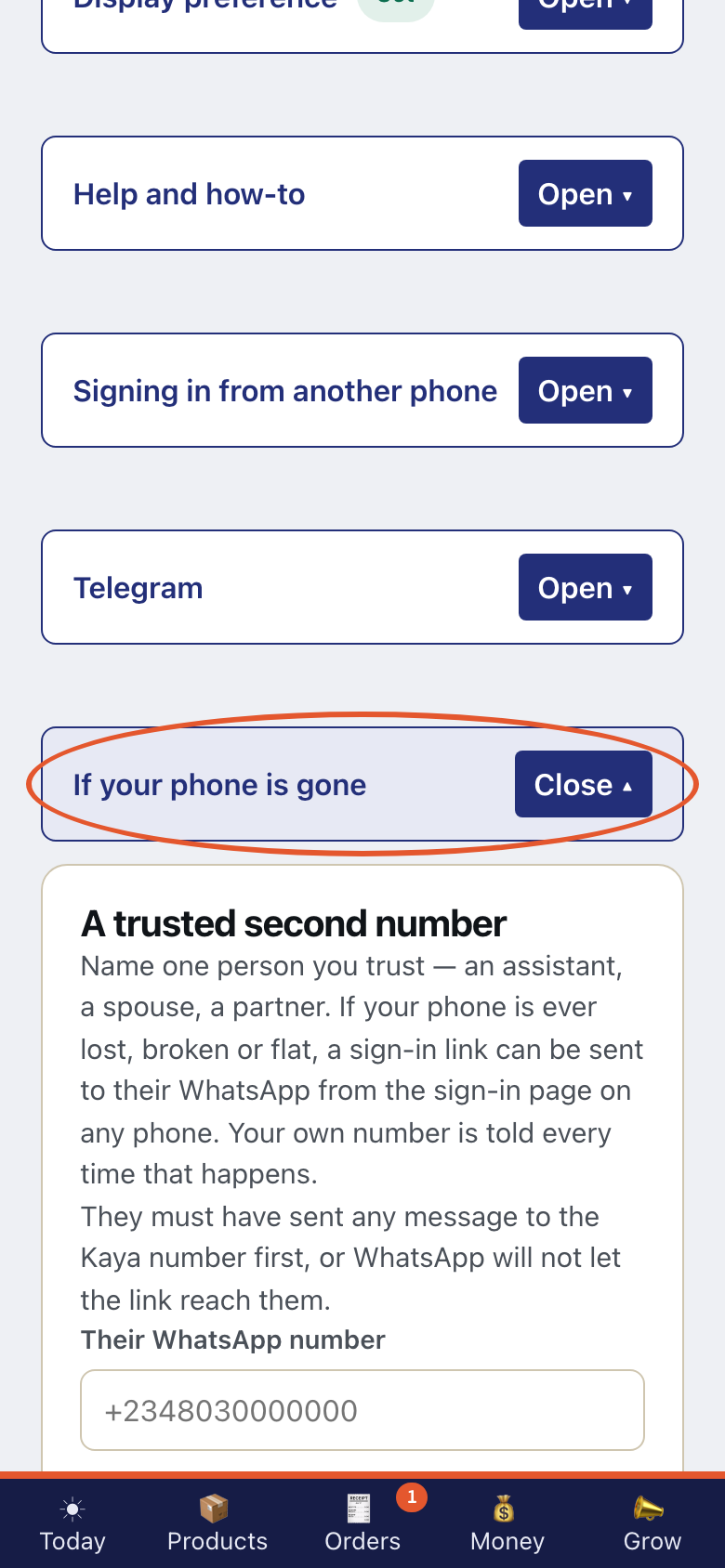
Name someone you trust. In Settings, open If your phone is gone and save their WhatsApp number.
- Step 9
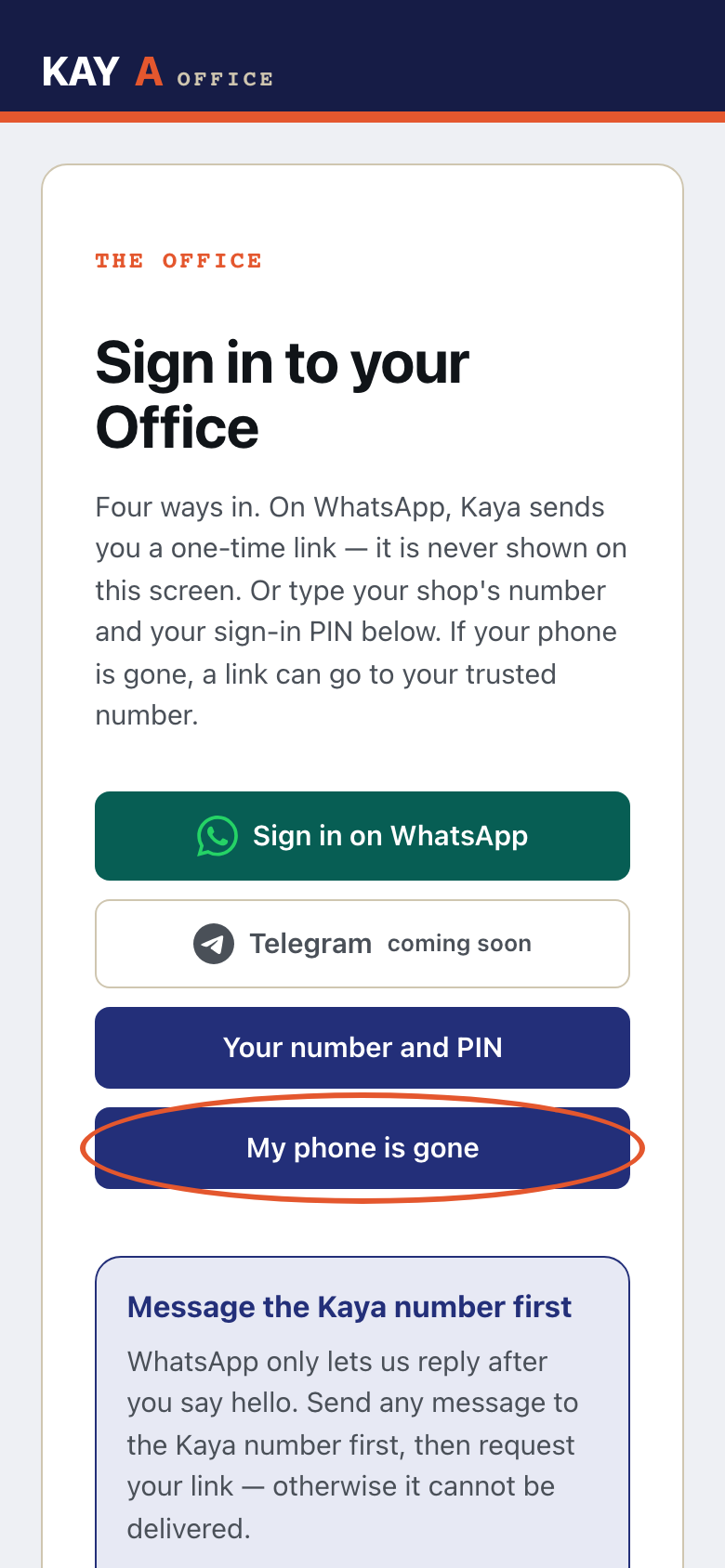
Phone gone? On the sign-in page, tap My phone is gone. Type your shop's number. The link goes to the person you trust.